Ask your Twin from Slack.
Your Twin connects the records spread across your systems. Twin for Slack brings it to where your team already talks: ask a question in a direct message, continue the conversation in a channel thread, and receive updates from the work you run in MLX.
What Twin does in Slack
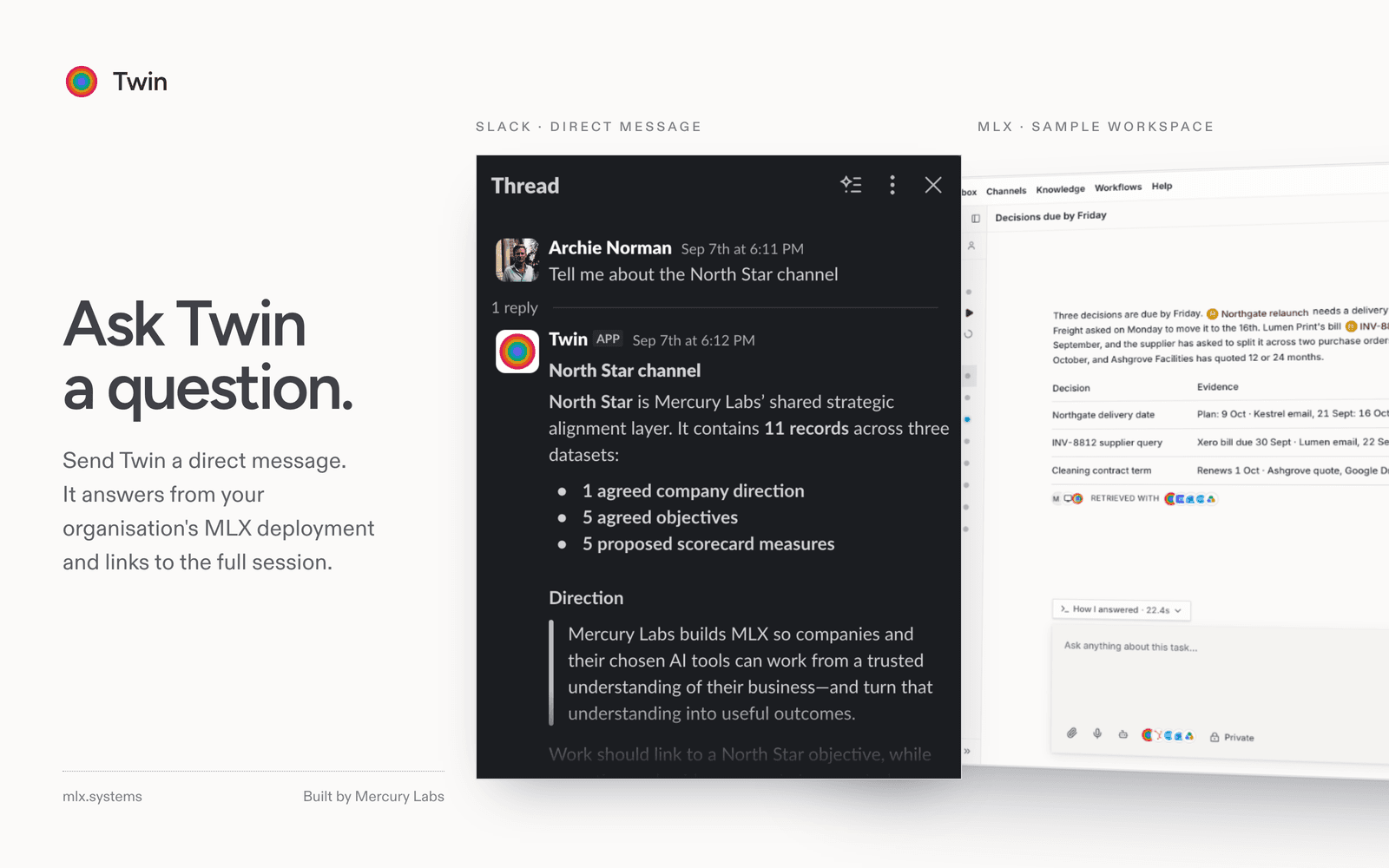
Ask Twin a question.
Send Twin a direct message. It answers from the same connected records and definitions as your Twin in MLX, and links to the full session, where you can inspect the sources behind the answer.
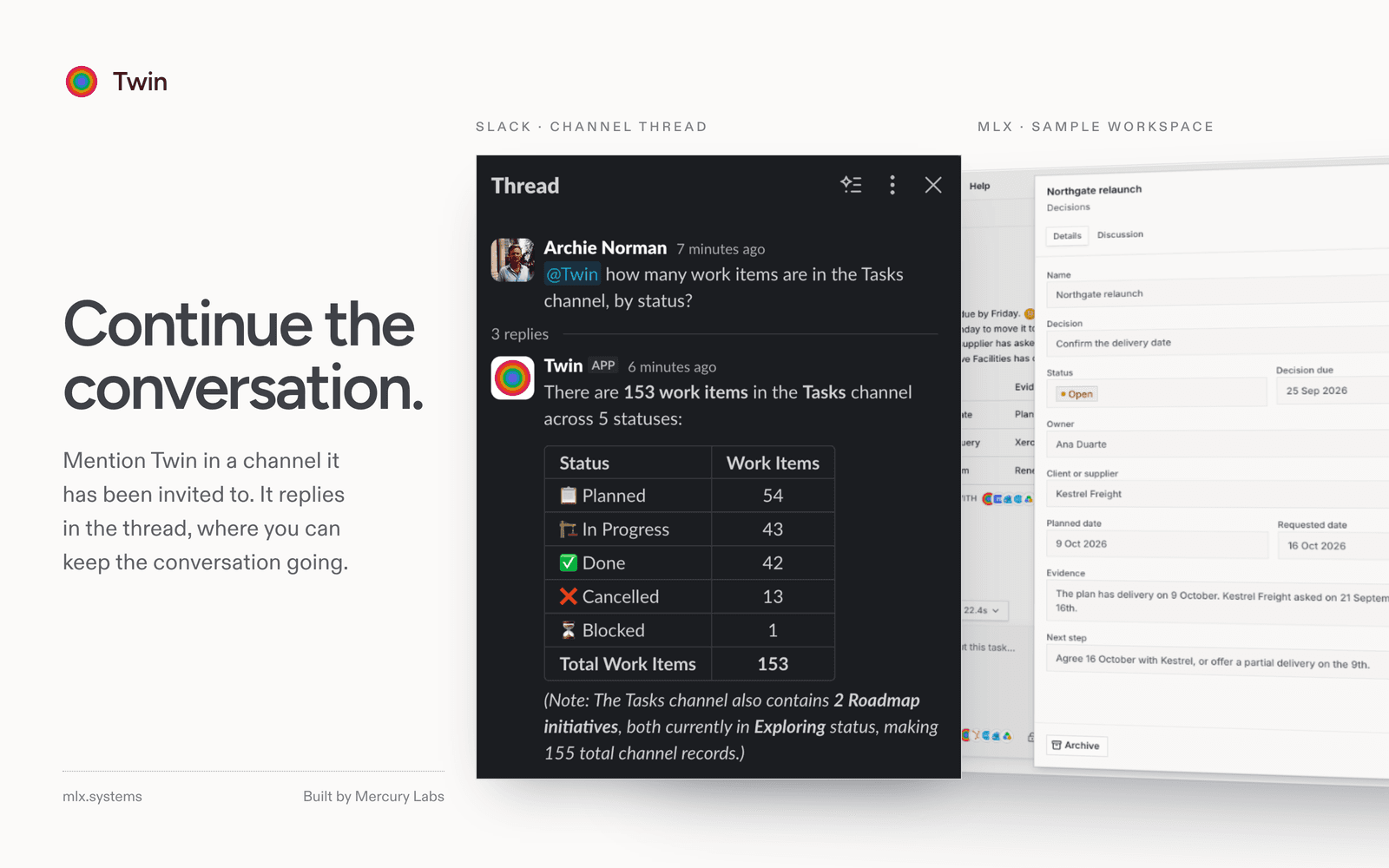
Continue the conversation.
Mention @Twin in a channel it has been invited to. Twin replies in the thread, where you can keep the conversation going. If you mention Twin part-way through an existing thread, it reads recent earlier messages in that thread, currently up to 40, so its answer has the context.
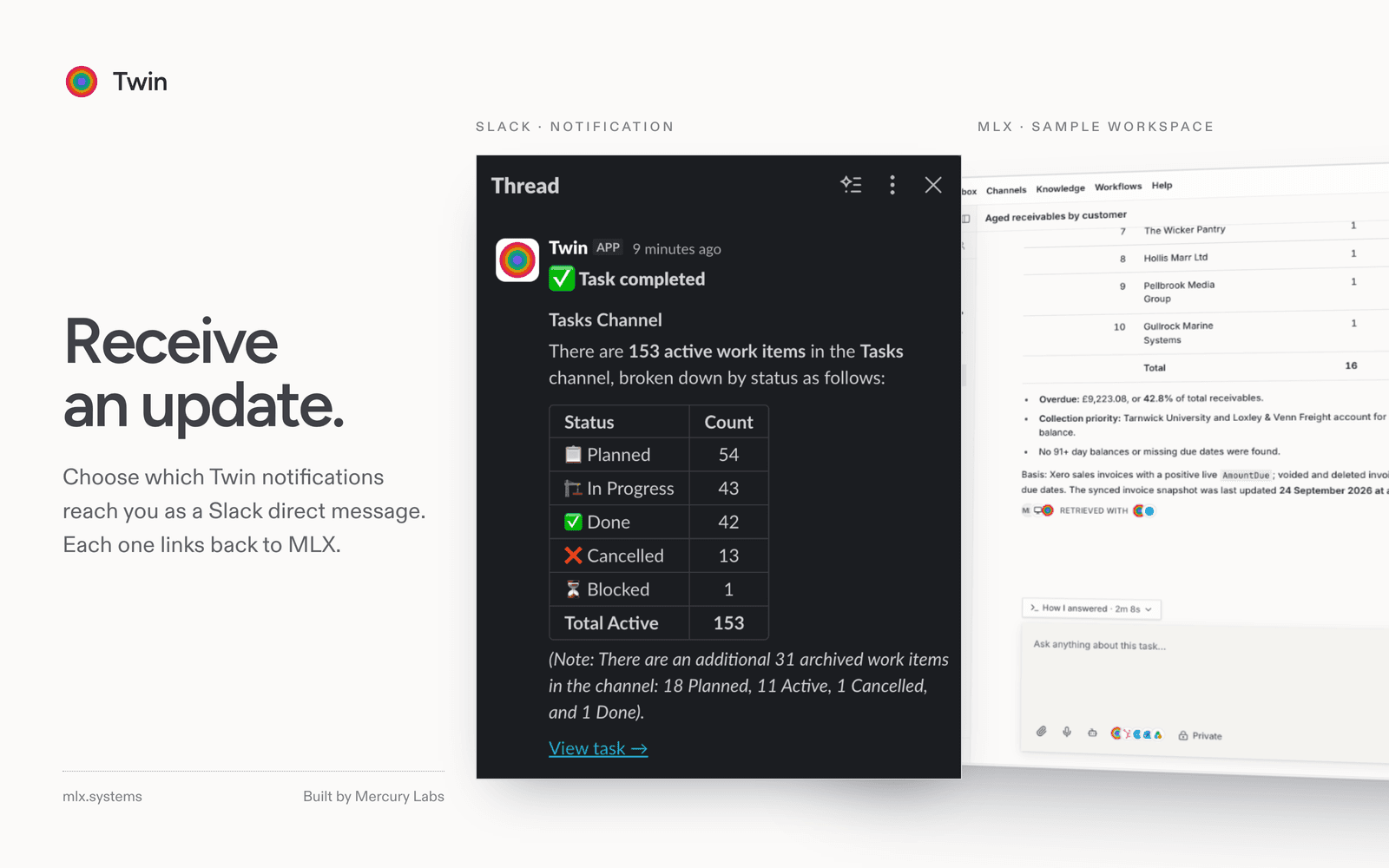
Receive an update.
Choose which Twin notifications reach you as a Slack direct message: a completed task or automation, a pending approval, a record assigned to you, a mention, and others. Each one links back to MLX.
Before you start
- An MLX subscription. Twin is included with it and does not work on its own.
- An MLX account. Twin answers Slack members who have connected their Slack identity in MLX. Anyone else who messages it is asked to connect first.
- Slack approval. If your workspace restricts apps, a Slack admin approves Twin once. Other members can then connect their own Slack identity.
Already using MLX?
- Sign in to your organisation's assigned MLX deployment.
- Open Twin in the top bar, choose Marketplace, then Slack.
- Select Install Twin in Slack, review the permissions Slack shows, and approve.
- Slack returns you to the same page in MLX. The connection is ready when On-demand Slack access and Direct conversations and notifications both show Connected.
Installation starts inside MLX so that your Slack workspace is linked to the right organisation. If you do not know your deployment address, email team@mercurylabs.io.
One approval enables private Twin conversations, notifications and on-demand Slack queries. It does not turn on continuous sync.
After you install
- Send Twin a direct message. Find Twin under Apps in Slack and ask your first question.
- Use Twin in a channel. Invite it by typing /invite @Twin there, then mention @Twin in a message.
- Choose your notifications. In MLX, open the account menu and choose Notifications, then pick which activities are delivered to Slack.
- Bring in your colleagues. Each member connects their own Slack identity from the same Slack page in MLX.
On-demand access and continuous sync
Twin can use Slack as a source in two ways. They are separate, and you choose each one.
| On-demand Slack access | Sync Slack into Twin | |
|---|---|---|
| Turned on by | Install Twin in Slack, or Connect access | Enable sync, a separate step |
| When it runs | While Twin works on a request that needs Slack | In the background, once you enable it |
| What it reads | Slack content you can already see, searched and read on your behalf | Your mentions and direct messages |
| What it keeps | Results are used for that task and are not continuously synced. The answer stays in its MLX session. | Your mentions and direct messages are stored in your organisation's MLX deployment. The first sync may look back up to 180 days. |
| Turned off by | Removing Twin from the workspace in Slack | Stop sync, on the Slack page in MLX |
Continuous sync is optional and stays off unless you enable it.
What Twin responds to
Twin acts on direct messages you send it, on messages that mention it, and on replies in a thread it has already answered in. It joins a channel only when someone invites it.
Privacy
Twin's answers are generated by the AI model provider configured for your MLX deployment, which receives your request and the context Twin gathers for it.
Read the privacy policy for what MLX collects, how it is used and how to ask about access, correction or deletion.
AI accuracy
Twin uses generative AI and can produce inaccurate or incomplete answers, summaries and other outputs. Review its responses before you rely on them or act on them.
Remove Twin
- Stop continuous sync. On the Slack page in MLX, select Stop sync.
- Remove the app. A Slack admin can remove Twin from the workspace in Slack. Twin's connection to that workspace is then deleted and it stops receiving messages from it.
Support
Email team@mercurylabs.io or visit MLX support. We aim to reply within one business day. You do not need another account to contact us.
Not using MLX yet?
Twin for Slack needs an MLX subscription. Read about MLX pricing, or contact Mercury Labs to talk through your first workflow.